


'%20x='0'%20y='0'%20height='100%25'%20width='100%25'%20%0A%20%20%20%20%20%20%20%20%20%20xlink%3Ahref='data:image/jpg;base64,/9j/2wBDAAYEBQYFBAYGBQYHBwYIChAKCgkJChQODwwQFxQYGBcUFhYaHSUfGhsjHBYWICwgIyYnKSopGR8tMC0oMCUoKSj/2wBDAQcHBwoIChMKChMoGhYaKCgoKCgoKCgoKCgoKCgoKCgoKCgoKCgoKCgoKCgoKCgoKCgoKCgoKCgoKCgoKCgoKCj/wgARCAAGAAoDASIAAhEBAxEB/8QAFgABAQEAAAAAAAAAAAAAAAAAAAMG/8QAFAEBAAAAAAAAAAAAAAAAAAAABf/aAAwDAQACEAMQAAAAvhQpP//EACIQAAAEBAcAAAAAAAAAAAAAAAIDBAUAASEiBgcREhMXZP/aAAgBAQABPwDFWaJLmk1QMCIs3baYfdMMdlPQacbbTxBj/8QAGBEAAgMAAAAAAAAAAAAAAAAAAQMAAiH/2gAIAQIBAT8AW9hG2M//xAAYEQACAwAAAAAAAAAAAAAAAAABAgADIf/aAAgBAwEBPwB60U4J/9k='%3E%3C/image%3E%3C/svg%3E)

Back in 2011, Minecraft Java Edition was the only variant, which was only compatible with Windows, Linux, and macOS. After one entire year, Mojang released a new console edition compatible with Xbox and PlayStation. Later down the line, they also released Bedrock Edition, which is compatible with various devices like Nintendo Switch, iOS, Android, etc.
Both Java and Bedrock Editions of the game can support crossplay, which means that two players on different kinds of devices can play in the same world. Here is a guide on how to crossplay in Minecraft.

Methods to enjoy crossplay in both Minecraft Bedrock and Java
Crossplay on Java Edition
As mentioned above, Java Edition is only compatible with Windows, Linux, and macOS. Since it is the oldest version, multiplayer is slightly tricky in it, not only crossplay.
 Trending
Chart New Territories with the ultimate Minecraft Seed Generator!
1) Create a Microsoft account
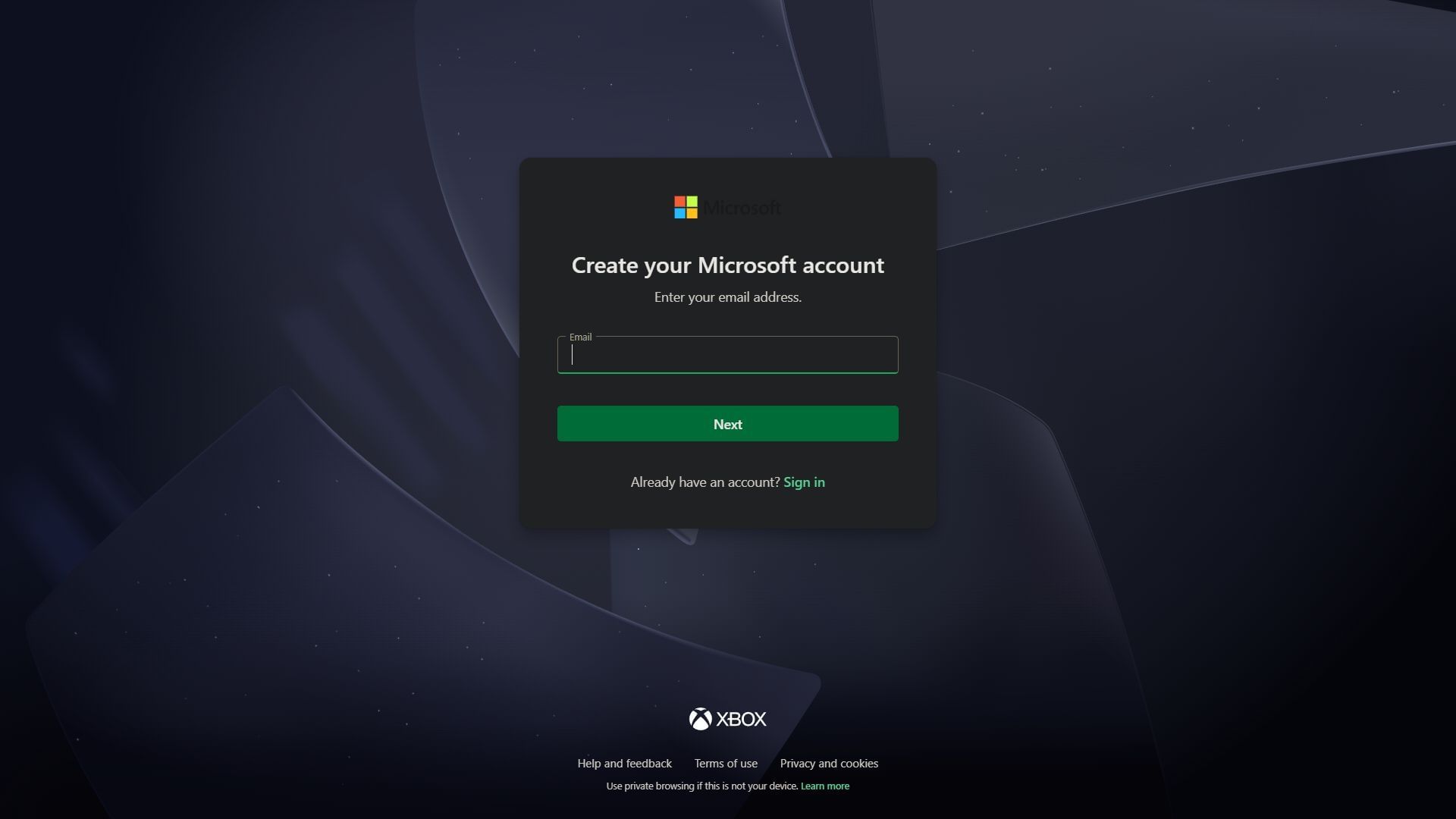
First, you need to create a Microsoft account. This is not only necessary to crossplay with players from other platforms, but also to purchase and download the game in the first place. You can do so by heading to the official Minecraft website and selecting "Create a new account" from the top-right tab.
2) Purchase and Download Minecraft Launcher
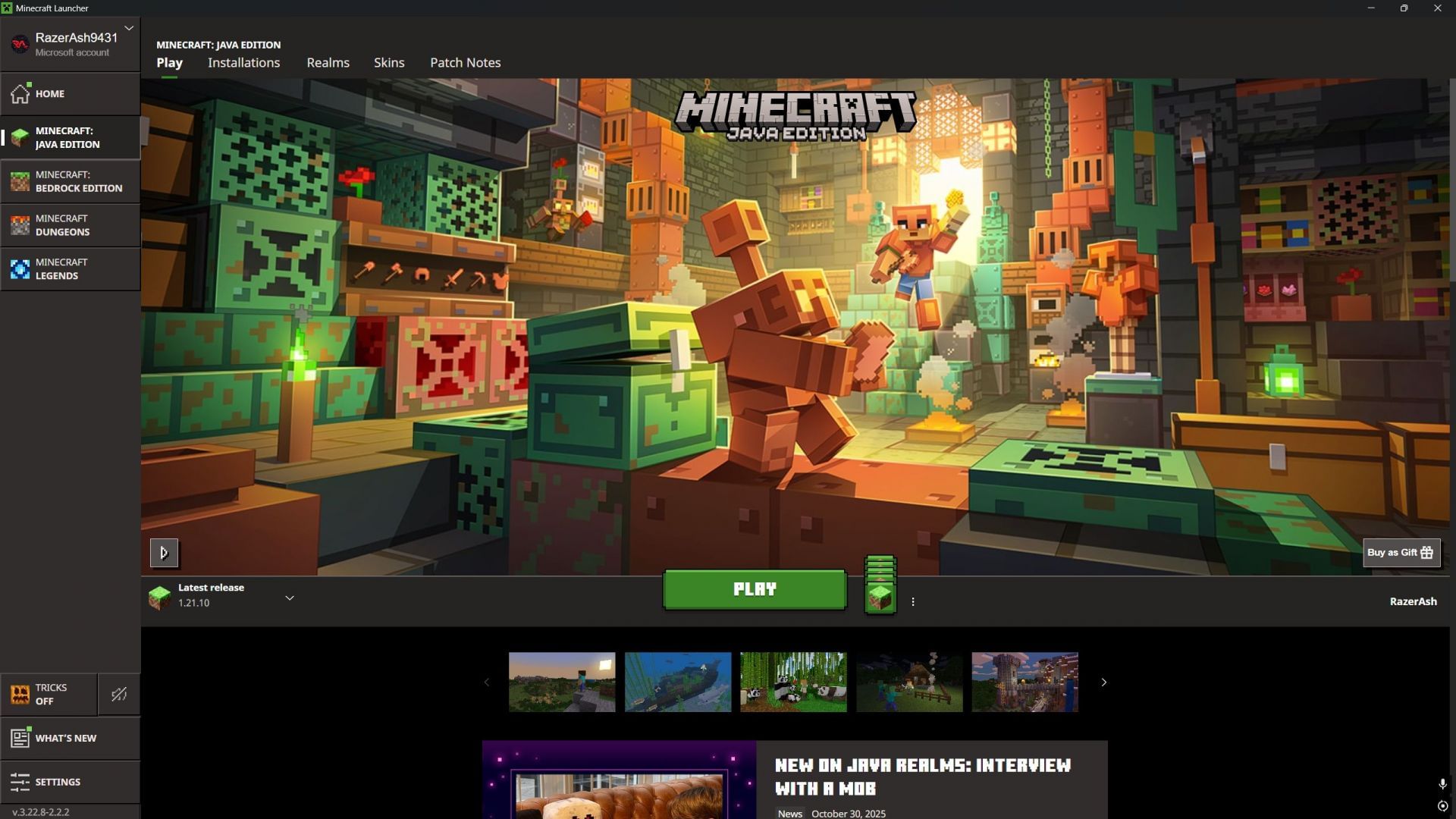
Once you create an account, you need to purchase and download Java Edition from the website. The site will ask you to download the launcher, from which you can choose "Java Edition", select a version, and then hit play.
3) Search online for servers or create your own
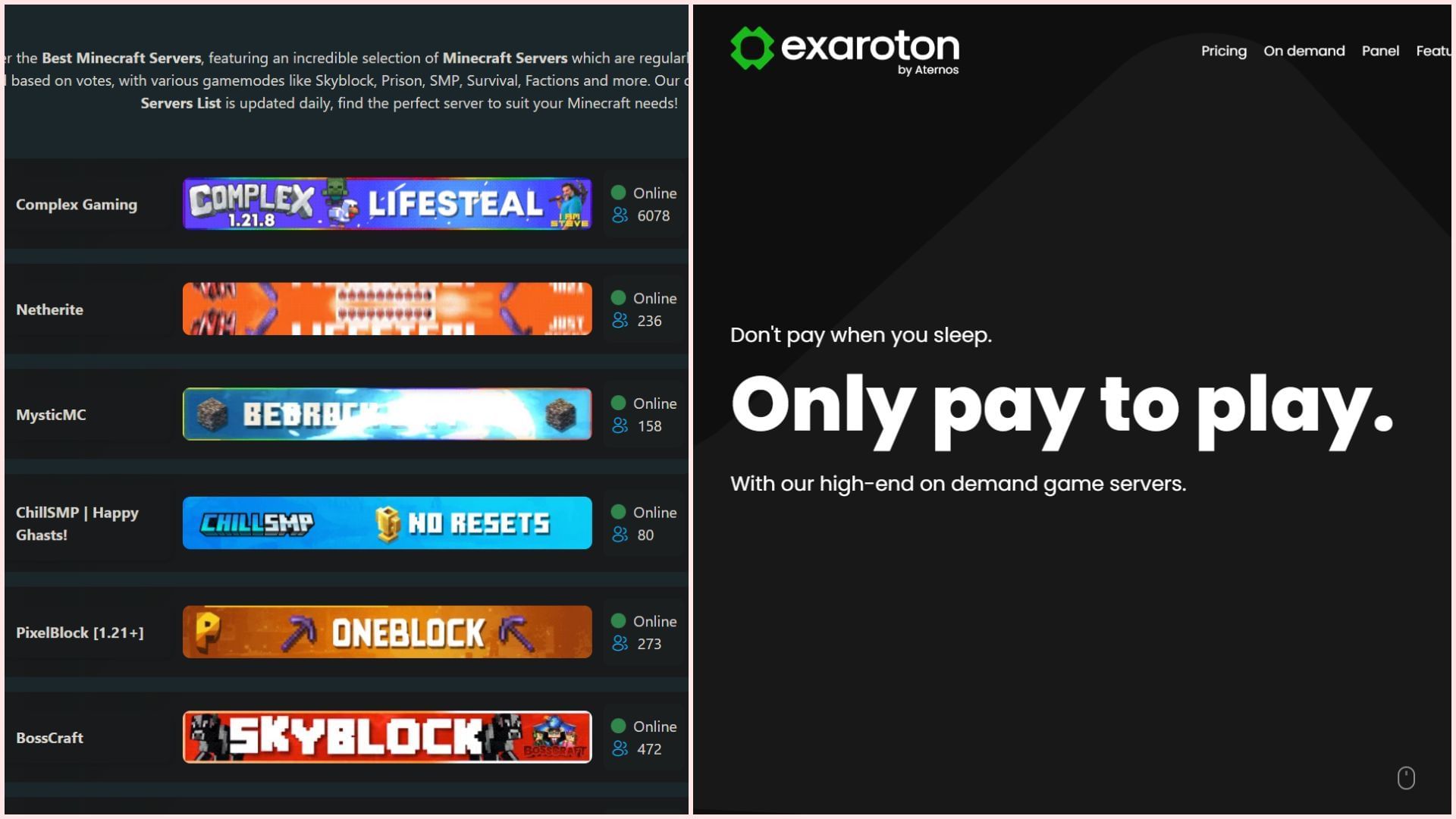
After getting Java Edition, you can either create your own Minecraft server using services like Exaroton for a fee or find all kinds of public servers.
In private servers, you will need to control every single aspect of that world, but you will be able to play with your friends. On the other hand, loads of players will flock to a public server, but you will simply need to input the server details in the game and enter. Hence, the choice is completely yours.
4) Ask players from different platforms to enter server details and enter the world
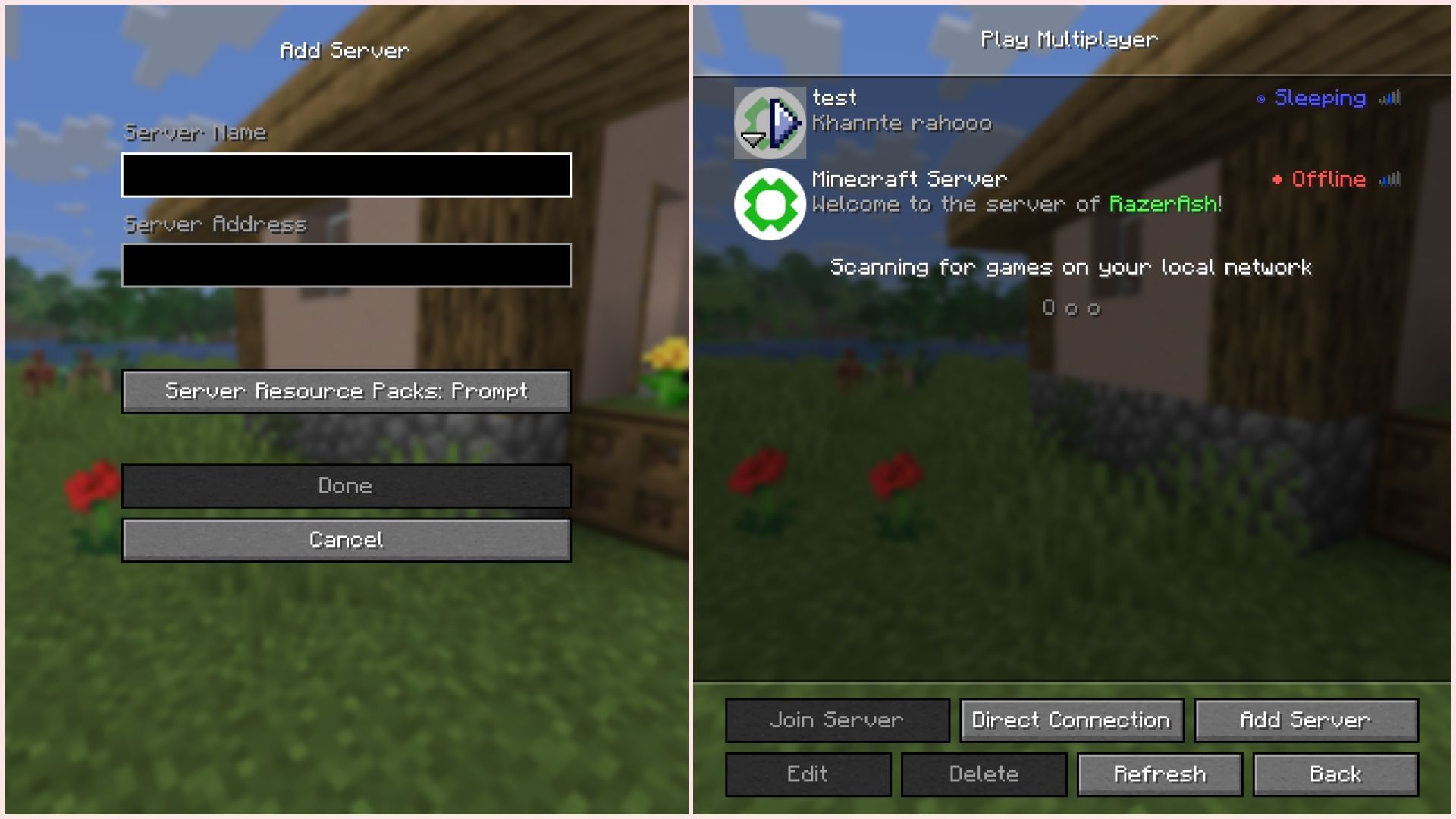
Once this is done, you can start Java Edition from the launcher, select "multiplayer", and click on "add server". This is where you can keep a custom name for the server on your server list, and add the server address, which should be provided on the public server website or Exaroton.
Other players or friends from different platforms can also do the same and add the server to the game. Once added, everyone can enter the world and enjoy.
Crossplay on Bedrock Edition
Crossplay on Bedrock Edition is much simpler, since Mojang focused quite a lot on it while developing this variant in 2017. Bedrock Edition's sole purpose is to bring players together. Hence, it is supported on so many devices like Windows, Xbox, Switch, PS, Android, Chrome OS, iOS, iPadOS, and Amazon Fire.
Playing in multiplayer worlds is extremely easy, even though people are on different platforms. Here are the steps to do so:
1) Create a new Microsoft Account
Same as before, players will first need to create a Microsoft account to purchase Bedrock Edition.
2) Download Minecraft Bedrock Edition from a device's app store
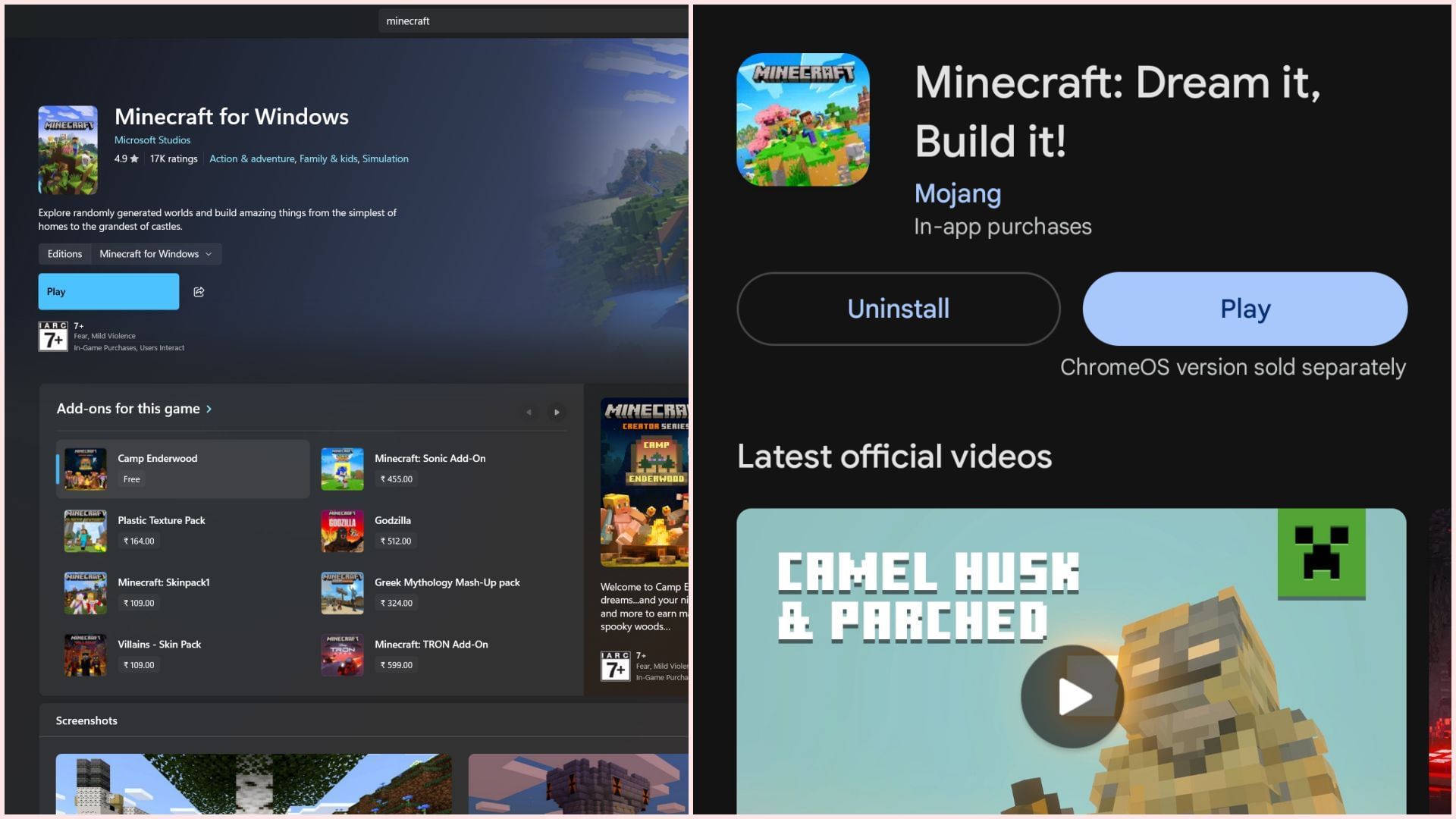
Search for "Minecraft" on any device's app store that you want to crossplay on, and download the game. After opening the game, it will ask you to log in to your Microsoft account.
3) Add friends from different platforms and play together in a multiplayer world
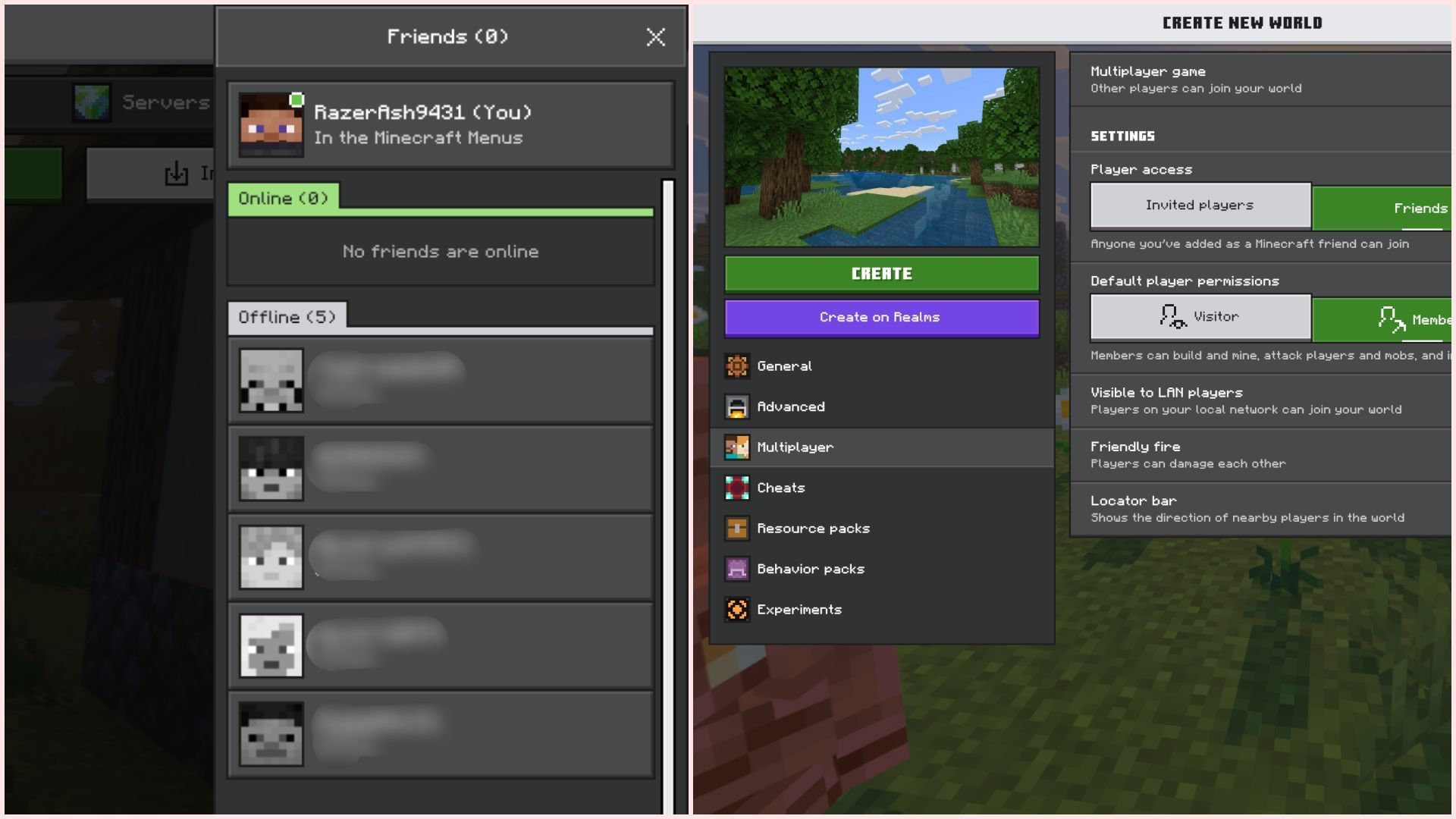
Finally, you can start adding your friends to your Microsoft account. Once this is done, you need to head to single-player, create a new world, but turn the "multiplayer" option on, so that your friends can join the game. It will not matter which platform they are on, making crossplay extremely easy in Bedrock Edition.
Check out our latest articles on Minecraft:
- Players point out major flaw in Minecraft reporting system being abused by users
- This impossible artwork made in Minecraft will leave you amazed
- Skeleton vs Parched in Minecraft: How different are the two mobs?

Uncover new worlds with our Minecraft Seed Generator!


