


'%20x='0'%20y='0'%20height='100%25'%20width='100%25'%20%0A%20%20%20%20%20%20%20%20%20%20xlink%3Ahref='data:image/jpg;base64,/9j/2wBDAAYEBQYFBAYGBQYHBwYIChAKCgkJChQODwwQFxQYGBcUFhYaHSUfGhsjHBYWICwgIyYnKSopGR8tMC0oMCUoKSj/2wBDAQcHBwoIChMKChMoGhYaKCgoKCgoKCgoKCgoKCgoKCgoKCgoKCgoKCgoKCgoKCgoKCgoKCgoKCgoKCgoKCgoKCj/wgARCAAGAAoDASIAAhEBAxEB/8QAFgABAQEAAAAAAAAAAAAAAAAAAAYH/8QAFQEBAQAAAAAAAAAAAAAAAAAAAQP/2gAMAwEAAhADEAAAAMymC5//xAAeEAACAgICAwAAAAAAAAAAAAABAgMEAAURIRJRcf/aAAgBAQABPwAbypLpbFo0+JC4WFAF8V++xkm+rPIzDU1uzz2xz//EABgRAAIDAAAAAAAAAAAAAAAAAAACAQMR/9oACAECAQE/AGsbIP/EABYRAAMAAAAAAAAAAAAAAAAAAAARIf/aAAgBAwEBPwBU/9k='%3E%3C/image%3E%3C/svg%3E)

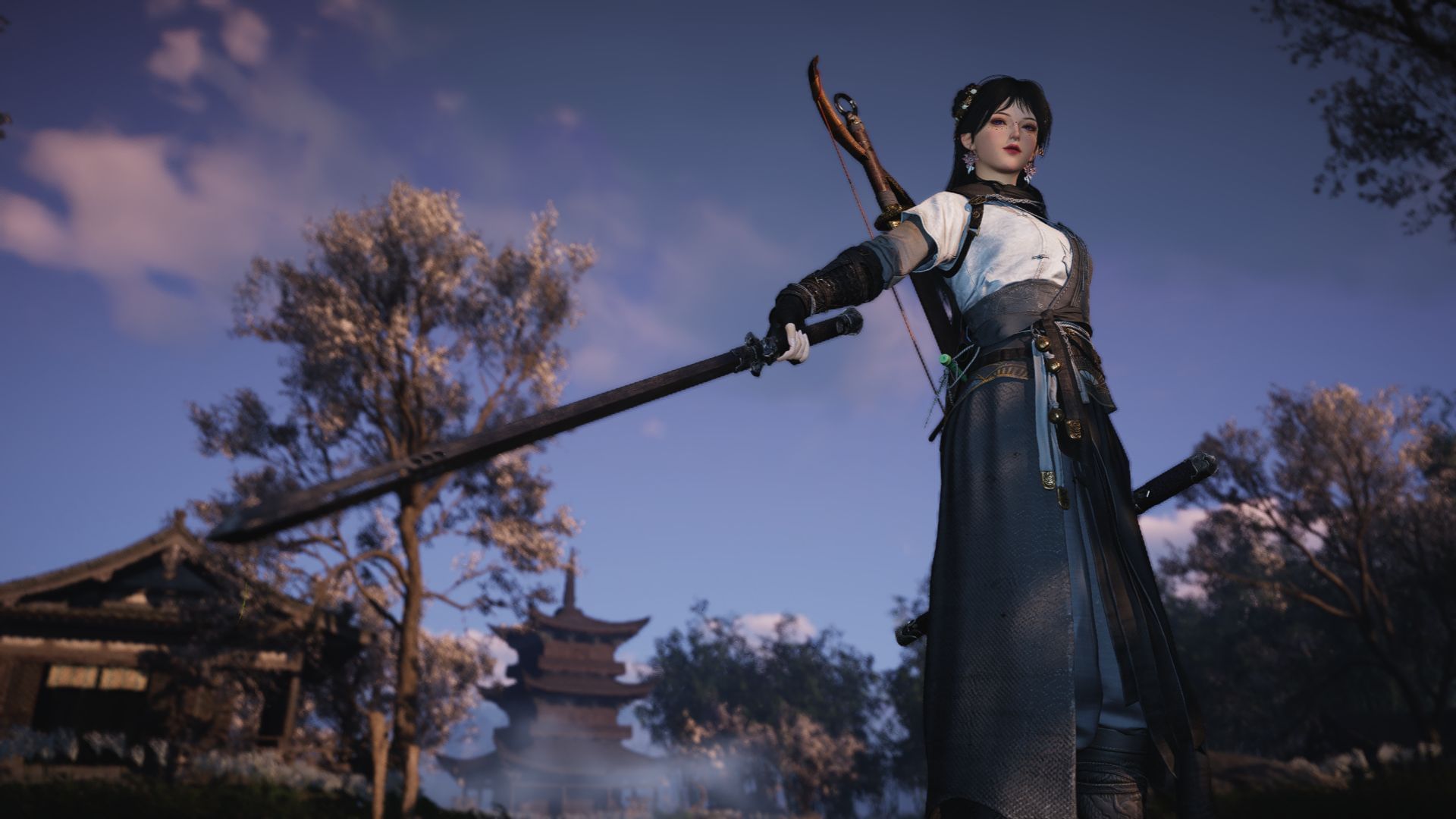
Among all the features, the Photo Mode in Where Winds Meet is exceptionally useful. It allows you to take a picture of your character wherever and however you want. Unlike other games, WWM’s camera is a little unique, as you can use various poses and backgrounds from the community. Moreover, this feature includes a pro mode that allows you to control everything for the perfect picture.
This article takes a look at how you can use the Photo Mode in Where Winds Meet.
Photo Mode in Where Winds Meet, explored

Looking for Crossword hints & solutions? Check out latest NYT Mini Crossword Answers, LA Times Crossword Answers, and Atlantic Crossword Answers
The Photo Mode in Where Winds Meet is very easy to use. To open the feature, you can either pause the game and manually click on the “camera” icon or press “F8,” the shortcut key. After you open the Photo Mode, you can switch between “Easy” and “Pro” mode. The former grants you the basic camera settings, such as Lighting and Filters, alongside some templates and character poses.
 Trending
In the Pro mode, it gives you free rein over everything. You can hide anything, such as your character, NPCs, buildings, guild members, and other players. Alongside the basic camera settings, you can switch weather, lighting, wind speed and direction, time, detail level, contrast, and filter.

You can pan the camera using the W, S, A, and D keys. Moreover, the camera angle can be moved when holding RMB (right mouse button). To rotate your character, follow the same steps, but hold LMB (left mouse button) instead.
When you are done tweaking the settings, simply hit the “space” bar to take a picture. Alternatively, you can manually move your mouse cursor to the camera logo on the right side of your screen to snap a photo.
Additionally, the Photo Mode in Where Winds Meet features official and player-made templates. Among the player-made ones, you can use the most popular templates by clicking on the "Popular" tab. If you get used to or like one in particular, you can add it to your favorites.
If you are using external software to take pictures, then you can hide the UI. Otherwise, you can save it locally using the in-game feature. The photo directory will be:
- Users\(your username)\AppData\Roaming\yysls
After taking a photo, you can press “More” and directly open the local folder.
Also read - Where Winds Meet Lite vs Standard vs Ultimate version: Which one should you play?
Check out the following articles related to Where Winds Meet:
- WWM walkthrough: How to complete Volume II - The Abandoned Shrine side quest
- WWM walkthrough: How to complete the Another New Wing main quest
- How to defeat Dalang in WWM
- All WWM Twitch drop rewards and how to get them

Are you stuck on today's Wordle? Our Wordle Solver will help you find the answer.


