


'%20x='0'%20y='0'%20height='100%25'%20width='100%25'%20%0A%20%20%20%20%20%20%20%20%20%20xlink%3Ahref='data:image/jpg;base64,/9j/2wBDAAYEBQYFBAYGBQYHBwYIChAKCgkJChQODwwQFxQYGBcUFhYaHSUfGhsjHBYWICwgIyYnKSopGR8tMC0oMCUoKSj/2wBDAQcHBwoIChMKChMoGhYaKCgoKCgoKCgoKCgoKCgoKCgoKCgoKCgoKCgoKCgoKCgoKCgoKCgoKCgoKCgoKCgoKCj/wgARCAAGAAoDASIAAhEBAxEB/8QAFgABAQEAAAAAAAAAAAAAAAAAAAUH/8QAFAEBAAAAAAAAAAAAAAAAAAAAAv/aAAwDAQACEAMQAAAAyiGAf//EAB4QAAEEAgMBAAAAAAAAAAAAAAECAwQRABIiQZLR/9oACAEBAAE/AHIsNmOtDDkoWBuTVk9VVYqNG2PN3wPuf//EABcRAAMBAAAAAAAAAAAAAAAAAAABAyH/2gAIAQIBAT8AnqP/xAAVEQEBAAAAAAAAAAAAAAAAAAAAAf/aAAgBAwEBPwCv/9k='%3E%3C/image%3E%3C/svg%3E)

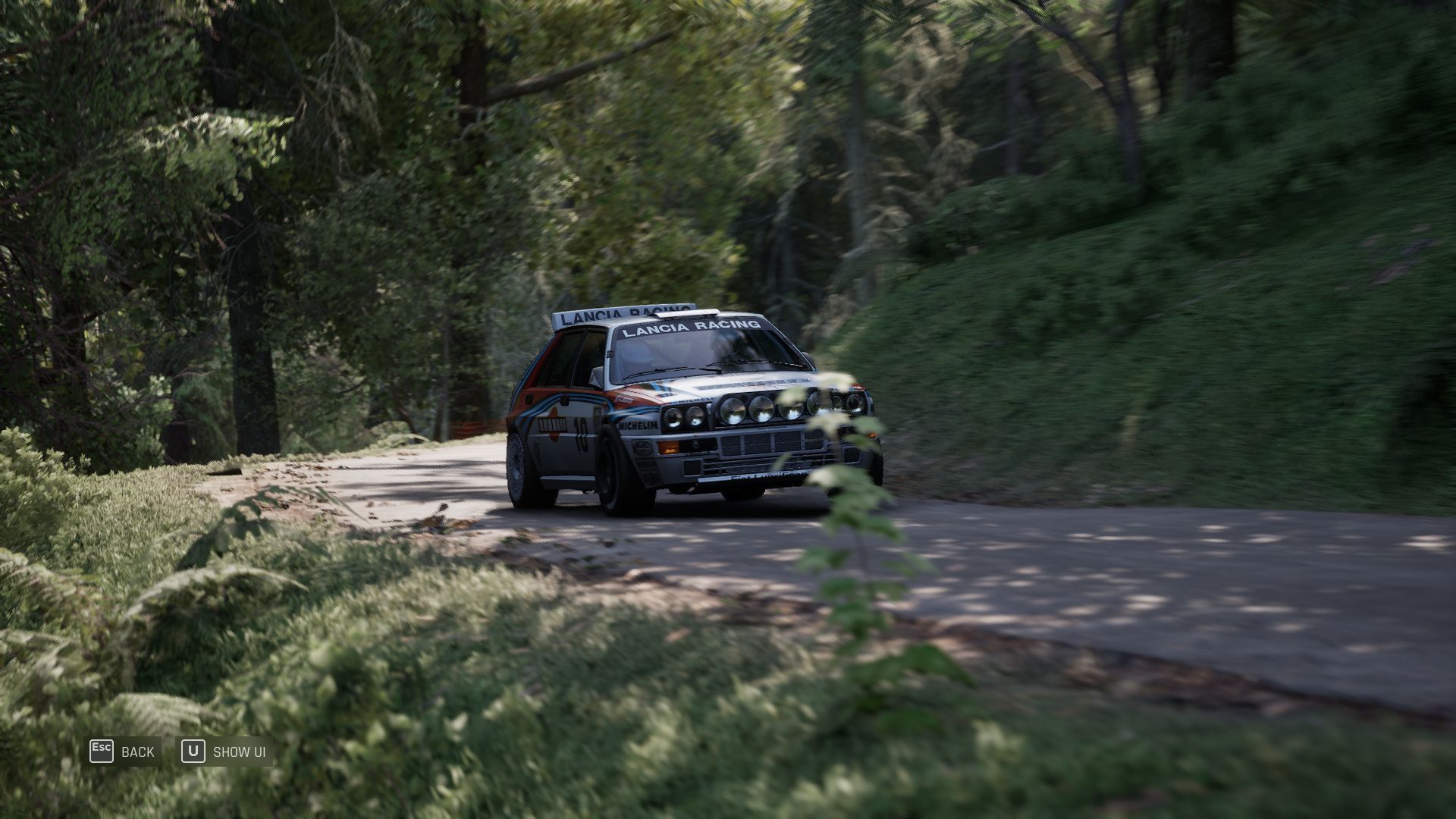
Assetto Corsa Rally is out now, and players are diving into the high-octane tracks of Alsace and Wales as they race to set the fastest lap or compete in weekends. However, some gamers have reported issues with controllers and wheels, preventing them from diving into the title. The developers have offered an official fix to resolve this issue and get things running smoothly again.
Here's how you can fix controller and wheel issues in Assetto Corsa Rally.
Guide to fixing controller and wheel issues in Assetto Corsa Rally

Looking for Crossword hints & solutions? Check out latest NYT Mini Crossword Answers, LA Times Crossword Answers, and Atlantic Crossword Answers
Assetto Corsa Rally offers a stunning rally simulation where gamers dive into the detailed stages of Wales and Alsace to immerse themselves in the art of rally. However, many gamers are complaining about compatibility or control issues when playing the title using their controllers or wheels.
 Trending
Fortunately, the developers have offered an official fix to resolve the issue and get the controller support back to normal.

Here's how you can fix controller issues in Assetto Corsa Rally:
- Close Assetto Corsa Rally
- Go to the library page of the title
- Right-click and open the Properties tab
- Head to the Controller tab and disable Steam Input
- Restart the game to enjoy controller support
Once done, controller players should be able to use their preferred gamepad or controller with ease. Additionally, if you have a controller and wheel plugged in, make sure to select your desired input device from the Settings tab in-game. If you still cannot bind your hardware, restart Steam and log in to the game again. This should apply the settings and restart the title with those parameters applied.
Additionally, developers have also offered a fix for Fanatec wheel users. Those who use Fanatec DD CSL will need to use the compatibility mode on the wheelbase to enjoy force feedback.
Here's how you can enable the compatibility mode on the wheelbase for Fanatec DD CSL:
- Locate the power button on the wheelbase and press it till the LED cycles to yellow
- Once the LED has turned yellow, compatibility mode will be successfully enabled.
Once enabled, players should be able to get force feedback on their wheel. Since this is one of the most important aspects of sim racing, the fix is great for gamers who do not want to miss out on the immersive feature.
Since the title is in early access, players might face compatibility issues or bugs. The developers have stated they are working on fixes for major persistent issues that have been reported by the community.
Also read: Assetto Corsa Rally Review: Immersive gameplay brings the art of rallying to life
Check out some other articles:
- AC Rally best controller settings
- Best camera settings in AC Rally
- Best racing wheel setup for AC Rally
- AC Rally Tyre Choice Guide: When to Use Soft, Medium, or Hard Compounds
- All stages in AC Rally
- All cars in AC Rally

Are you stuck on today's Wordle? Our Wordle Solver will help you find the answer.


