


'%20x='0'%20y='0'%20height='100%25'%20width='100%25'%20%0A%20%20%20%20%20%20%20%20%20%20xlink%3Ahref='data:image/jpg;base64,/9j/2wBDAAYEBQYFBAYGBQYHBwYIChAKCgkJChQODwwQFxQYGBcUFhYaHSUfGhsjHBYWICwgIyYnKSopGR8tMC0oMCUoKSj/2wBDAQcHBwoIChMKChMoGhYaKCgoKCgoKCgoKCgoKCgoKCgoKCgoKCgoKCgoKCgoKCgoKCgoKCgoKCgoKCgoKCgoKCj/wgARCAAGAAoDASIAAhEBAxEB/8QAFgABAQEAAAAAAAAAAAAAAAAAAAMH/8QAFQEBAQAAAAAAAAAAAAAAAAAAAgP/2gAMAwEAAhADEAAAAMTiUH//xAAdEAACAQQDAAAAAAAAAAAAAAABAhMAAwQGESFB/9oACAEBAAE/AMTYsid5ubii2B3T7ApdjD7X/8QAFhEAAwAAAAAAAAAAAAAAAAAAAAER/9oACAECAQE/AKz/xAAWEQADAAAAAAAAAAAAAAAAAAAAARL/2gAIAQMBAT8AlH//2Q=='%3E%3C/image%3E%3C/svg%3E)

The Where Winds Meet errors list has grown steadily since launch, and while the game runs smoothly for many players, others are hitting frustrating bugs that block login, freeze the screen, or crash the client entirely. Some issues can be fixed directly on your end, while others require the developers to roll out patches.
Below is a real-time breakdown of Where Winds Meet errors affecting the game.
Note: This list will expand as more Where Winds Meet errors surface in the near future. The solutions mentioned in this article are workarounds and aren't guaranteed to work.
Looking for Crossword hints & solutions? Check out latest NYT Mini Crossword Answers, LA Times Crossword Answers, and Atlantic Crossword Answers
All Where Winds Meet errors and their possible fixes
While several Where Winds Meet errors require official fixes, the workarounds below can help you regain access or stabilize the game until updates roll out.
 Trending
Login failure error
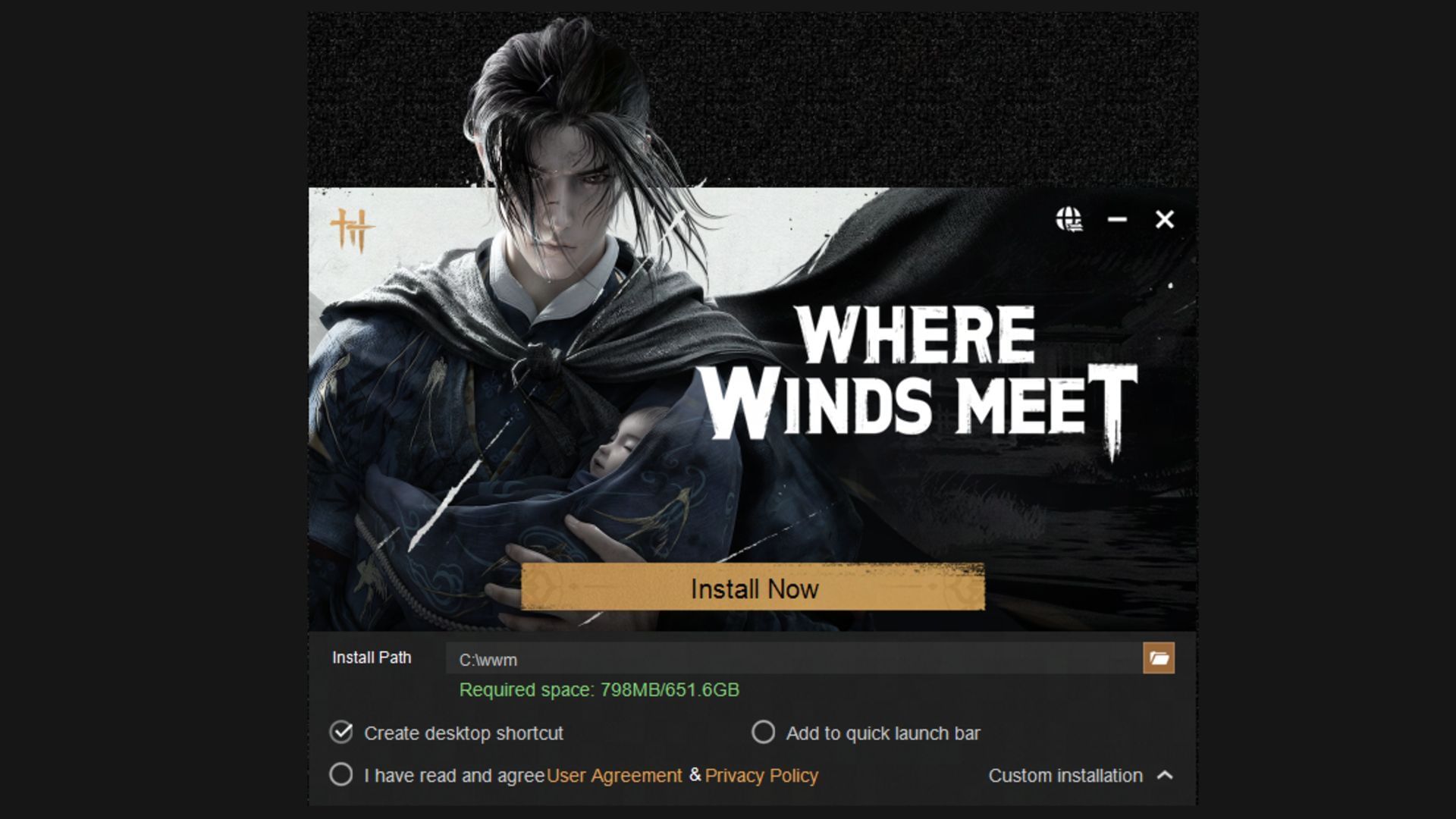
This is one of the most common and frustrating Where Winds Meet errors. It usually appears right as you start the game, preventing access to your account or character data. While there's no official fix yet, you can try a few simple steps that might work:
1) Reset your router
- Unplug your router for a few seconds and restart it.
- If that doesn’t work, you can flush your DNS manually:
- Open your Start menu and search for Command Prompt.
- Right-click and choose Run as Administrator.
- Type ipconfig /flushdns and hit Enter.
- This refreshes your internet configuration and can fix connectivity conflicts that cause login errors.
2) Reinstall the game
If the above method fails, a clean reinstall might help. It’s time-consuming, but it forces the launcher to download a fresh set of files, which can clear out any broken data causing the login loop.
If none of these steps work for Where Winds Meet errors, it’s best to wait for an official patch, as this specific bug seems to be server-related on the developer’s end.
Also read - How (and why) to join a Guild in Where Winds Meet
Stuck on the loading screen error
Another recurring Where Winds Meet error involves players getting stuck on a black or frozen loading screen, especially on Android. The game either doesn’t progress past the initial logo or remains in a permanent load cycle after login.
In either case, you can restart your device or reinstall the game. Whereas a fresh boot clears temporary memory conflicts or frozen processes, a reinstall, on the other hand, not only updates the client automatically but also replaces any corrupted temporary data.
This fix has worked for most cases of infinite loading on mobile and PC. If the bug persists even after these steps, it’s likely on the server side, as it’ll need to be resolved through a developer patch.
Fatal error
The Fatal Error usually appears right after launching the game or during cutscenes, often caused by corrupted files or compatibility issues. It’s one of the more serious crashes, and in this case, we recommend running the game as Administrator.
Running the game with admin permissions can help bypass file permission conflicts. To do so:
- Right-click on the Where Winds Meet launcher.
- Select Run as Administrator.
If the Fatal Error persists even after these steps, the issue likely stems from the client build itself, meaning an upcoming patch will be needed.
Also read - Where Winds Meet walkthrough: Gathering of Heroes (Universal Furnace)
Where Winds Meet errors: Not launching or crashing on PlayStation 5
There is a possibility that Where Winds Meet fails to reach the title screen or crashes immediately on the PS5. If the game doesn’t even load into the main menu, try the following steps in the provided order:
1) Restore licenses on PS5
This simple fix is effective for crashes and startup errors:
- Press the Options button on the Where Winds Meet tile.
- Go to Restore License.
- Confirm and let the process finish.
License sync issues can sometimes prevent a game from launching, especially if the title is new.
2) Sign out and back into your PSN account
If restoring the license doesn’t help, the problem might be tied to the PlayStation Network being unable to verify your account. In this case, here's what you should do:
- Go to Settings.
- Select Users and Accounts.
- Open Other.
- Sign out of your PSN account, then sign back in.
This refreshes your account's connection with the PlayStation Network and can resolve boot or access problems.
3) Change or remove language packs
Language files can sometimes conflict with the base install, especially after patches. Doing this can fix the issue:
- Go to the game tile.
- Select Manage Game Content.
- Change the installed language or delete unused language packs.
Where Winds Meet performance and settings guide
Even if you aren’t dealing with Where Winds Meet errors, or should you consider running it on DX11 or DX12 mode, optimizing performance can prevent future crashes and FPS drops. Where Winds Meet scales well across modern systems, but tweaking a few options can improve both stability and visuals.
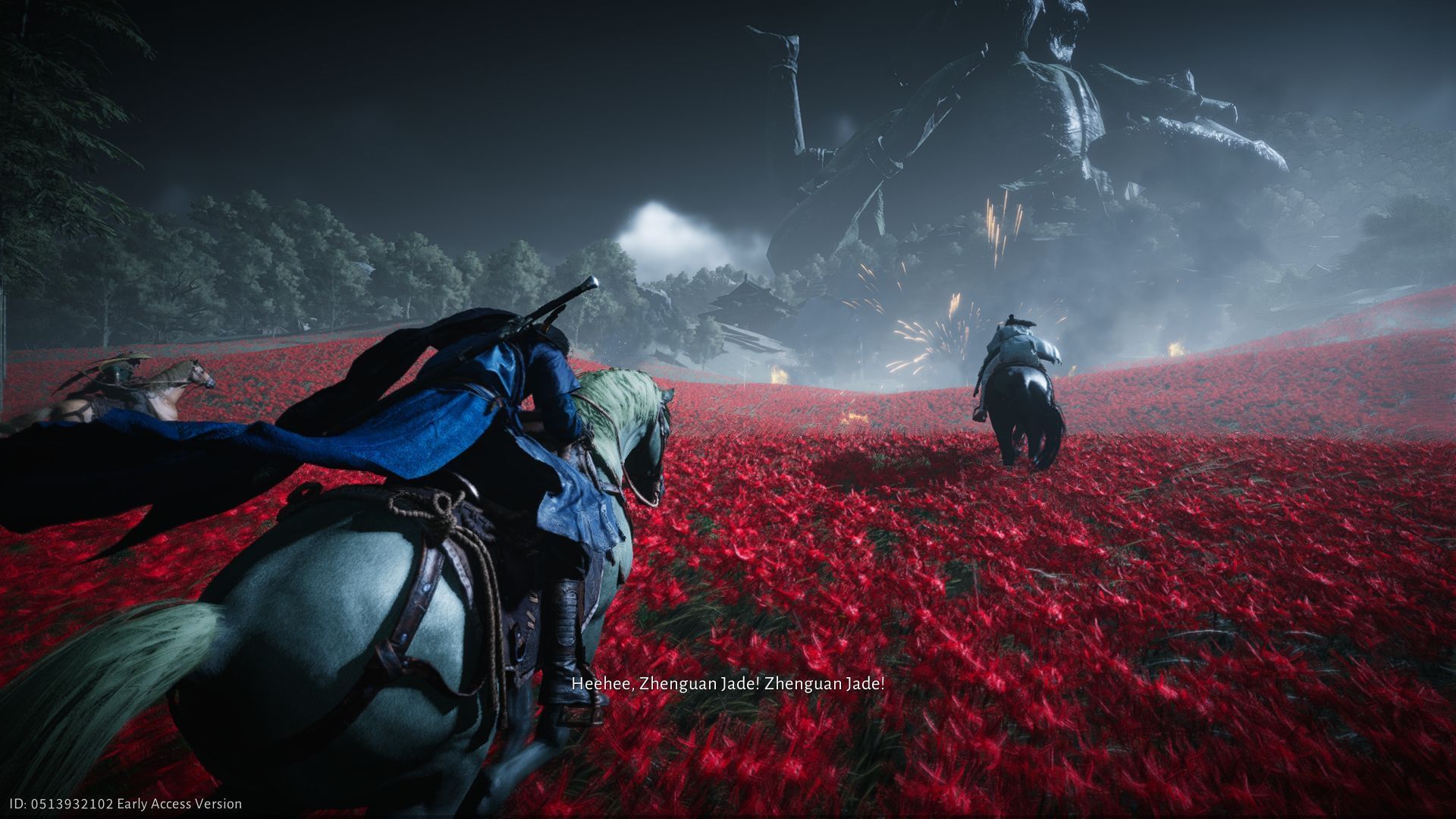
You can follow these PC optimization settings for a better experience:
- Motion Blur: Off
- Super Resolution Type: DLSS (or FSR if DLSS isn’t supported) set to Quality
- Tessellation: Low
- Vegetation Quality: Medium
- Reflection Quality: Medium
- Everything Else: Ultra equivalent
Reflections look cleaner on Medium than on Ultra, and disabling motion blur makes combat sharper and more responsive. If you have DLSS Frame Generation available, you can enable it for extra smoothness with minimal latency.
Check out our other content below:
- Where Winds Meet review: The best, most compelling Wuxia game in years
- Sword of Justice vs Where Winds Meet: Which game should you play?
- Is Where Winds Meet an MMO?

Are you stuck on today's Wordle? Our Wordle Solver will help you find the answer.


